-
Solutions

Class Registration & Enrollment.
Let students register and pay for classes online while keeping enrollment organized in one place.

CRM & Lead Management
Turn more inquiries into enrollments by keeping every lead, follow-up, and conversation organized in one place.

Student Management (SIS)
Manage student records, enrollment, documents, communication, progress, and day-to-day administrative activity from one central system.

Billing & Payments
Collect online payments, manage invoices, receipts, payment plans, subscriptions, and account balances from one system.

Learning Management (LMS)
Deliver online and instructor-led learning with course materials, assignments, quizzes, grading, progress tracking, and certificates.

Automation & Integrations
Reduce repetitive administrative work with automation and connect Steams to the other tools your organization uses.

Reporting & Analytics
Turn your operational data into useful insights with reports covering enrollment, students, payments, accounts receivable, and program performance.
- Blogs
- Support Center
- Contact
- About
Support Center
Support Center / Get Started With The Basics / Students / How to add a contract to the student's profile?
How do I upload a student/client's picture?
1. Log into your account to access your dashboard.
2. Click on Students tile.
3. Enter the name of the client in the search box, then click on the search button.
Note: You can search for clients via their name, social security number, or their unique identification number.
4. Once you locate the client's record, click on the edit button to access their profile.

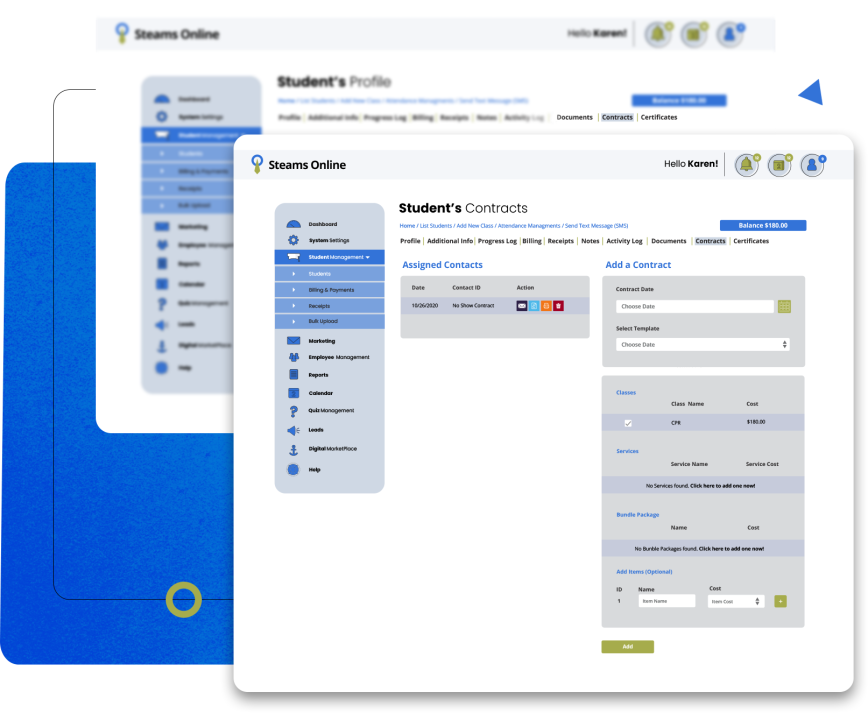
5. Click on the "Contracts" link in the top menu, then complete the details on the right to assign the contract to the student's profile.
6. Fill the required information
7. Click on the "Add Button".
Related Articles
Solutions